11 updates

Product Updates

The latest features and improvements shipped in VoxInvoice. We build in the open — here's what's new.

Preview Invoices Before Downloading

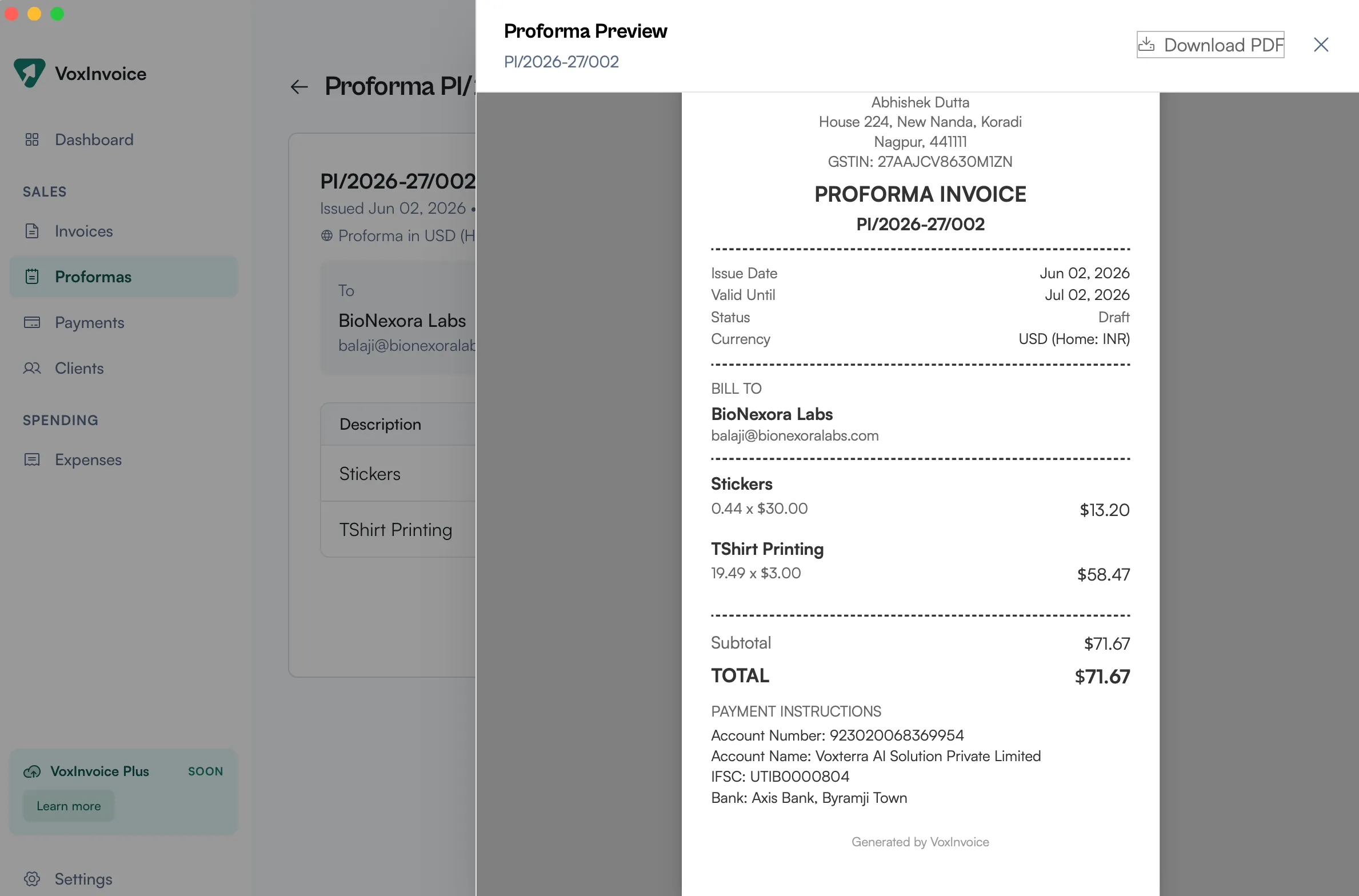
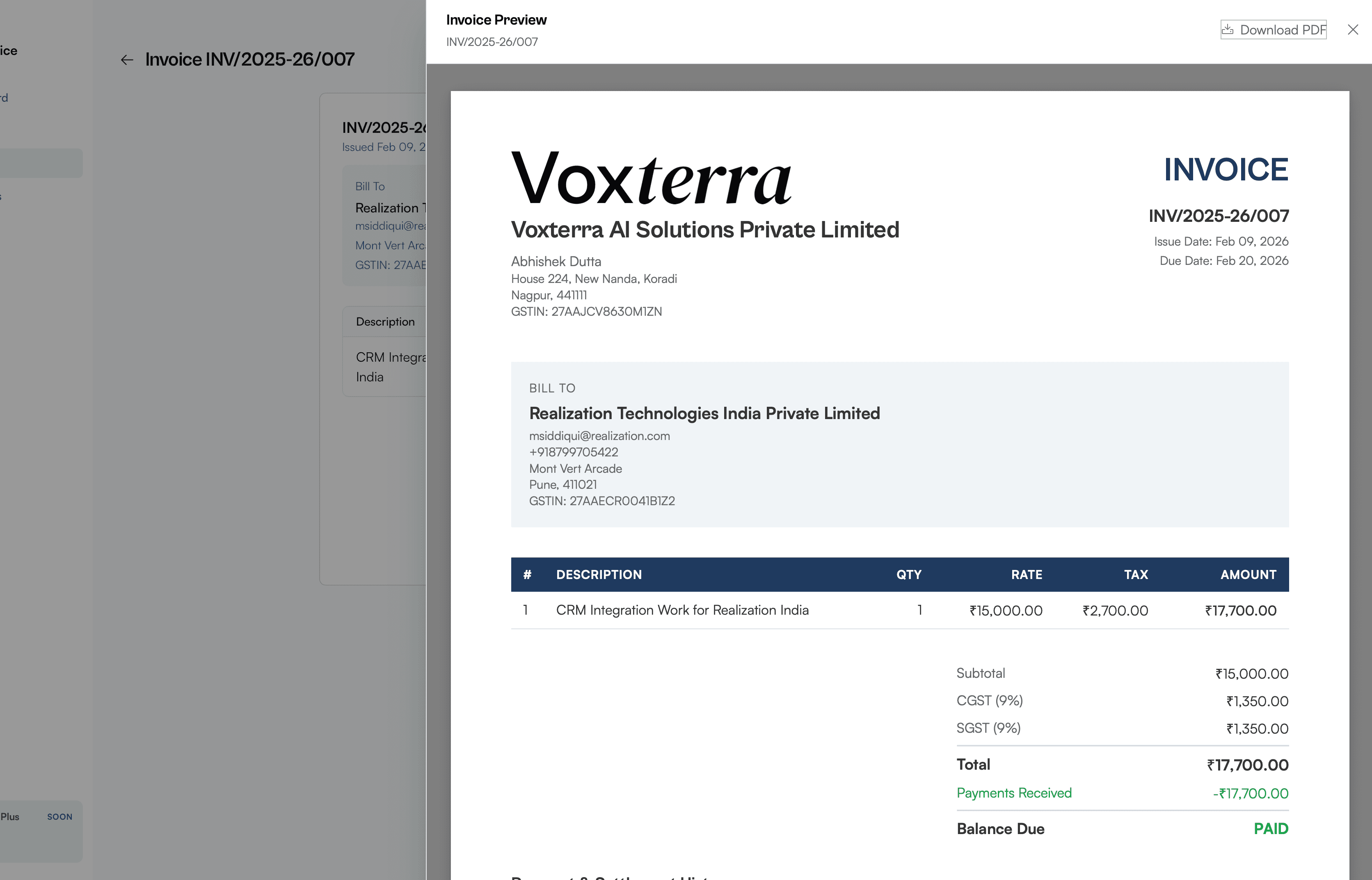
Want to double-check your invoice before sending it out? Now you can preview any invoice as a full PDF render right inside the app. Click the Preview button on any invoice detail page and a slide-over panel shows exactly how the final PDF will look — complete with your business details, client info, line items, taxes, and payment status. If everything looks good, hit Download PDF to save it directly from the preview. No more downloading first just to check formatting.

How to get started

  1. 1Go to Invoices from the left sidebar
  2. 2Click on any invoice to open its detail view
  3. 3Click the Preview button in the dock at the bottom of the screen
  4. 4A slide-over panel opens showing the full PDF render
  5. 5Review the layout, line items, taxes, and totals
  6. 6Click Download PDF in the top-right corner to save the file
Invoice preview panel showing the full PDF render with business details, line items, taxes, and payment status

Customize Invoice Template Style

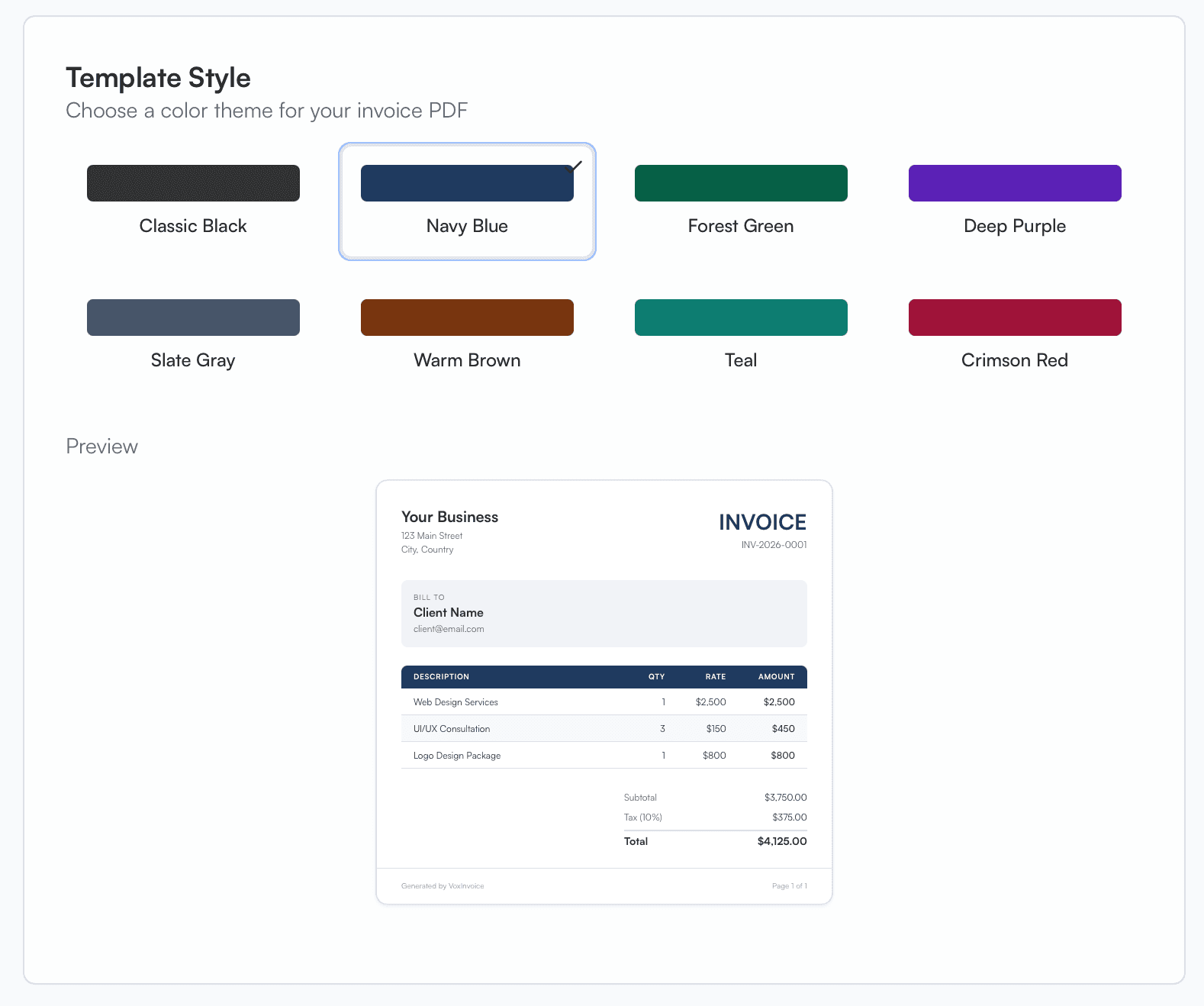
Your invoices should match your brand. Head to Invoice Settings and choose from eight color themes — Classic Black, Navy Blue, Forest Green, Deep Purple, Slate Gray, Warm Brown, Teal, and Crimson Red. The live preview updates instantly as you pick a color, so you can see exactly how your invoices will look before saving. The selected theme applies to all new and existing invoice PDFs across your business.

How to get started

  1. 1Go to Settings from the left sidebar
  2. 2Open the Invoice Settings section
  3. 3Scroll to the Template Style area
  4. 4Click on any color theme to select it — the preview updates instantly
  5. 5Press Save to apply the theme to all your invoice PDFs
Template Style settings showing eight color theme options with a live invoice preview below

Duplicate Invoices in One Click

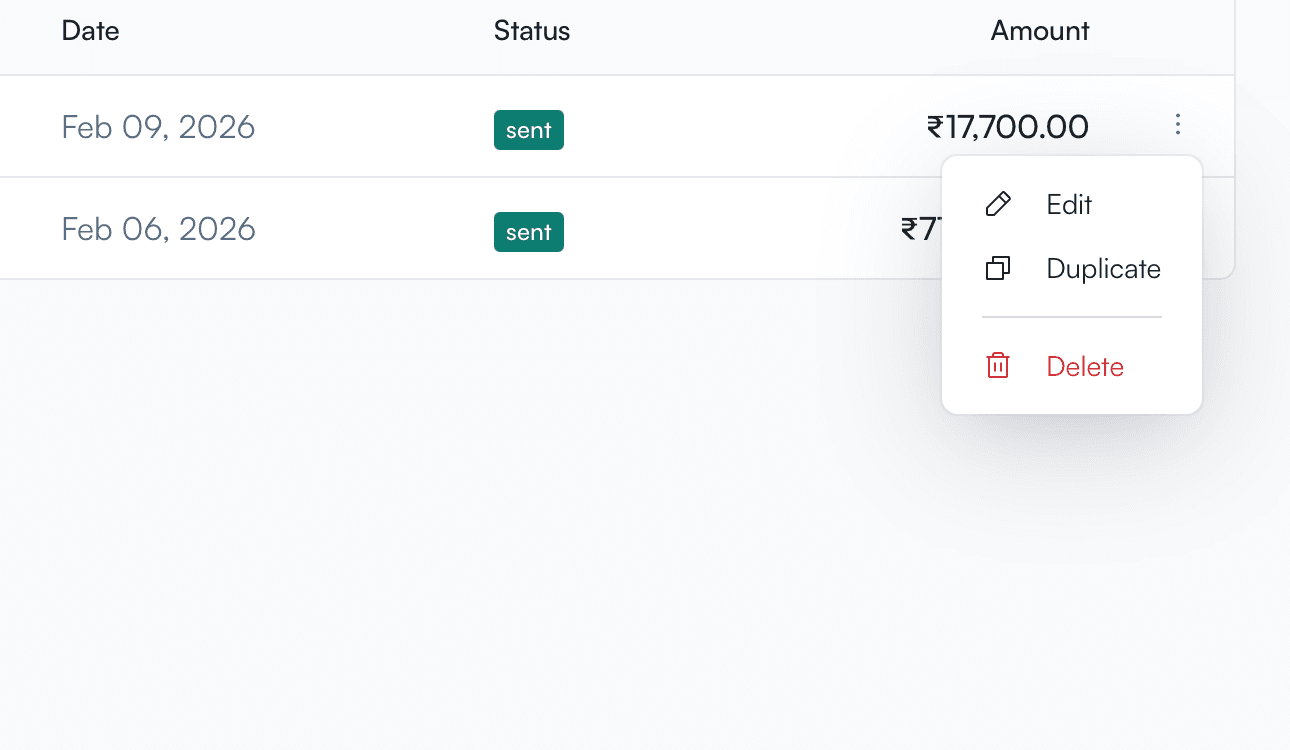
Sending similar invoices to the same client? Now you can duplicate any existing invoice with a single click. Hit the three-dot menu on any invoice row, choose Duplicate, and a new draft is created with all the line items, tax details, and client info carried over. Just tweak what's changed — dates, amounts, notes — and you're ready to send. No more re-entering the same details from scratch.

How to get started

  1. 1Go to Invoices from the left sidebar
  2. 2Click the three-dot menu (⋮) on any invoice row
  3. 3Select Duplicate from the context menu
  4. 4A new draft invoice is created with all details carried over
  5. 5Edit any fields you need to change — dates, amounts, notes
  6. 6Press Save to finalize the new invoice
Invoice list showing the three-dot context menu with Edit, Duplicate, and Delete options

Remove VoxInvoice Branding from Invoices

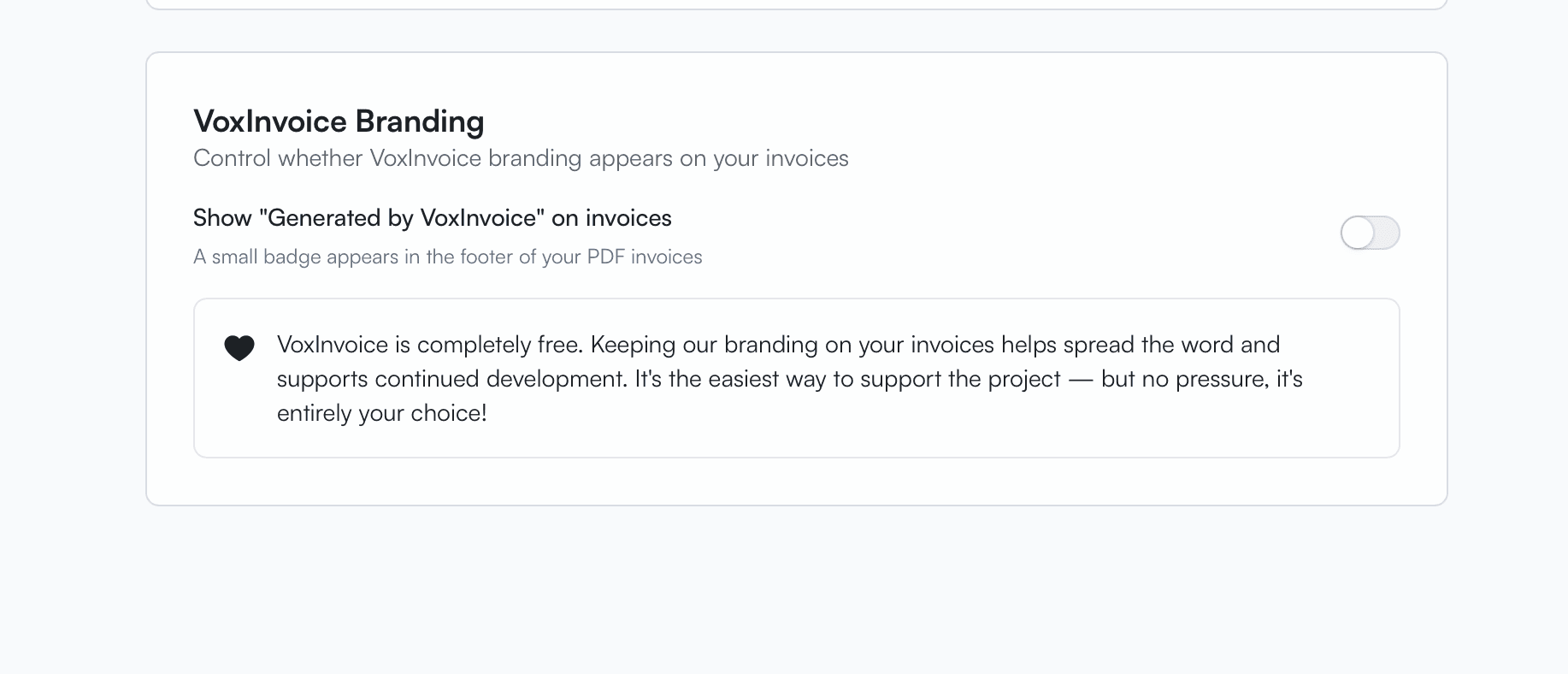
Your invoices, your brand — no strings attached. You can now toggle off the "Generated by VoxInvoice" badge that appears in the footer of your PDF invoices. Head to Settings to flip the switch. That said, VoxInvoice is completely free, and keeping the badge on is the easiest way to spread the word and support continued development. We've included a friendly note in the settings to let you know — but there's absolutely no pressure. It's entirely your choice.

How to get started

  1. 1Go to Settings from the left sidebar
  2. 2Scroll down to the VoxInvoice Branding section
  3. 3Toggle off "Show Generated by VoxInvoice on invoices"
  4. 4Your future PDF invoices will no longer include the badge in the footer
VoxInvoice branding settings with toggle to show or hide the Generated by VoxInvoice badge on invoices

Payment Reminders & Overdue Notifications

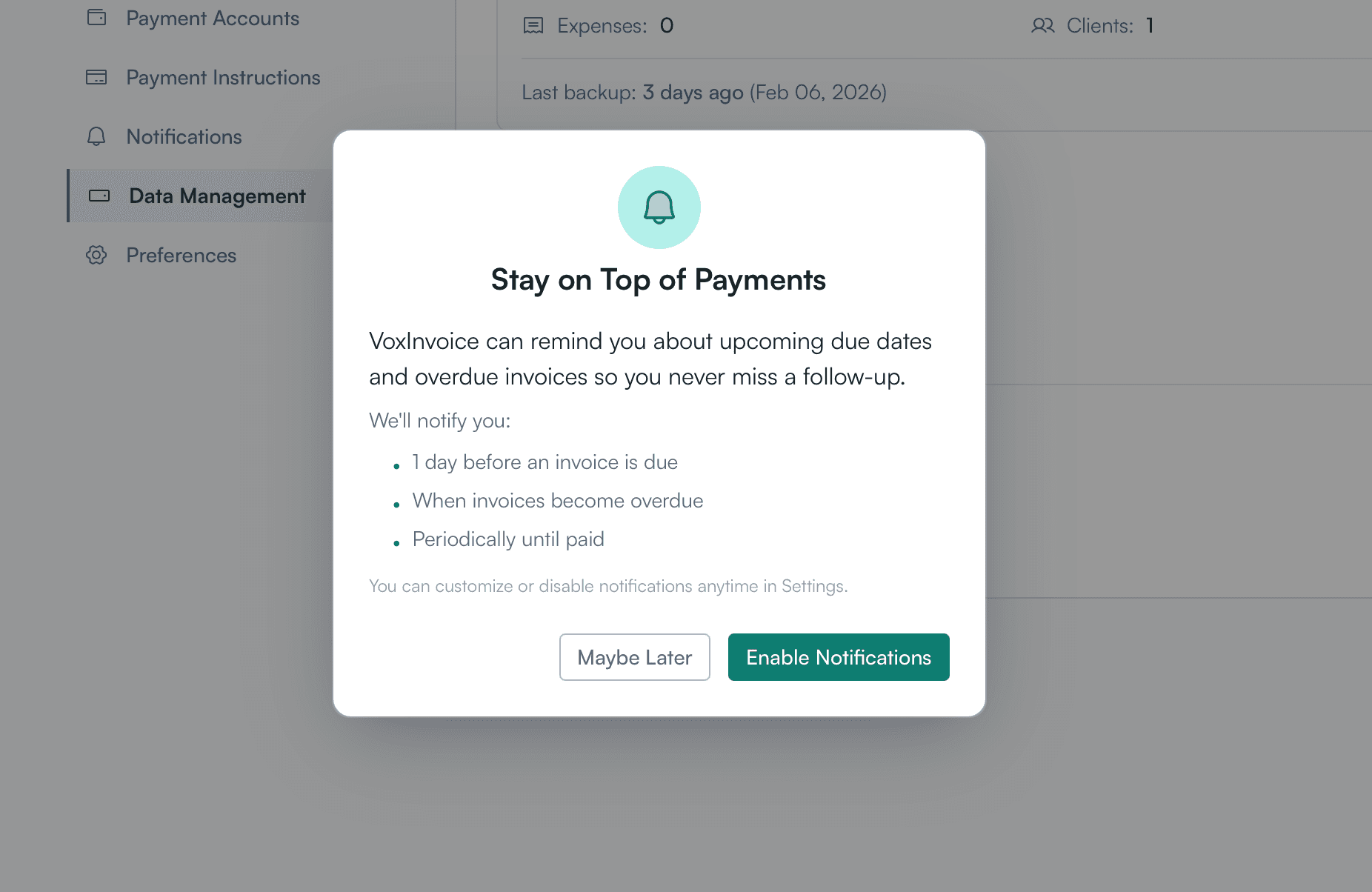
Never miss a follow-up again. VoxInvoice now sends native desktop notifications to remind you about upcoming due dates and overdue invoices. Get notified one day before an invoice is due, the moment it becomes overdue, and periodically until it's paid. Customize reminder preferences per business, set quiet hours so you're not disturbed outside work, and enable or disable notifications anytime from Settings.

How to get started

  1. 1When prompted, allow VoxInvoice to send notifications on your device
  2. 2Go to Settings from the left sidebar
  3. 3Open the Notifications section
  4. 4Enable the reminders you want — due soon, overdue, and periodic follow-ups
  5. 5Optionally set quiet hours to avoid notifications outside work
Notification permission dialog prompting to enable payment reminders for due and overdue invoices

Multi-Currency Invoicing with Live Forex Rates

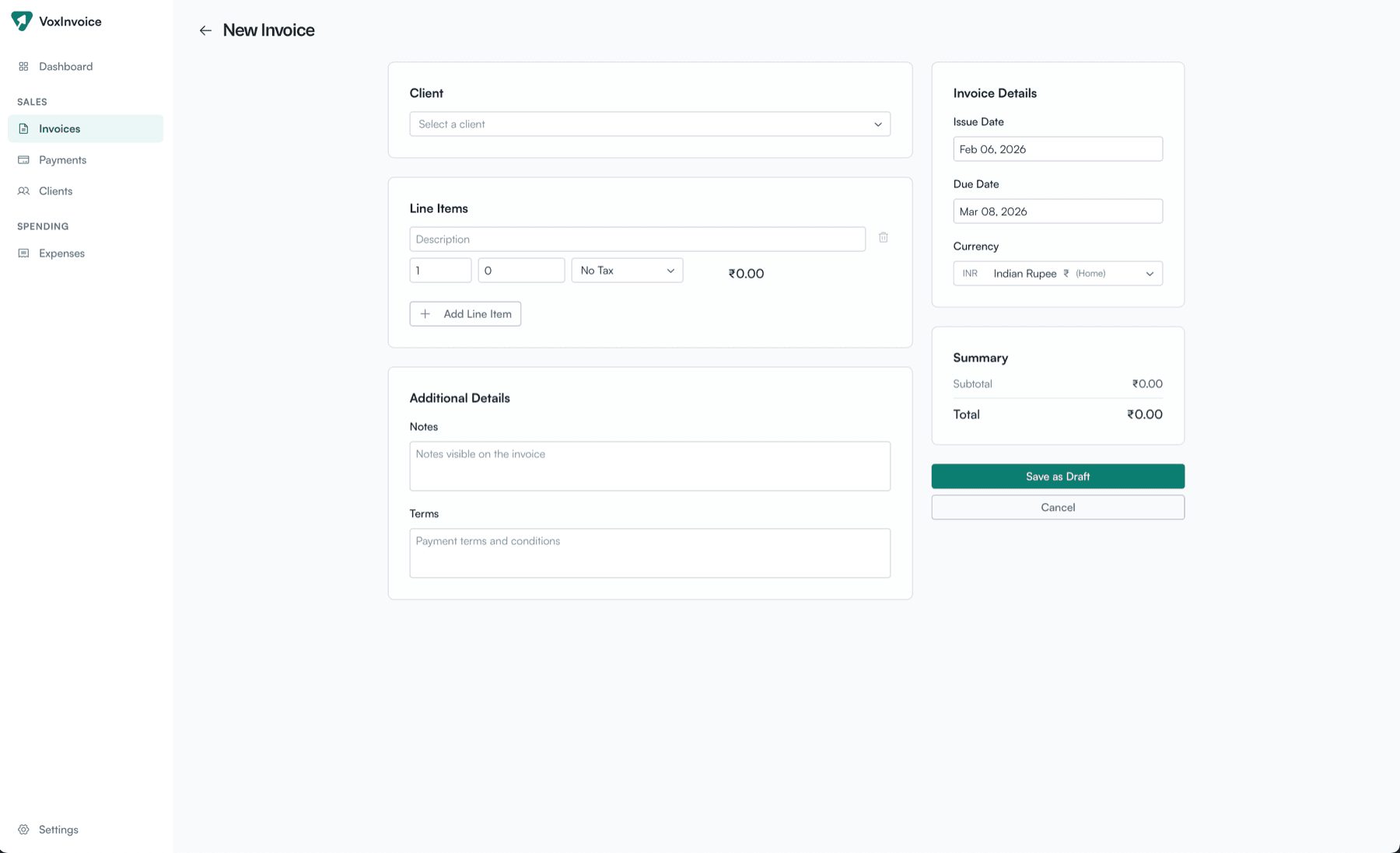
Invoice clients in any of 60+ currencies. When recording payments, VoxInvoice fetches live exchange rates from the Frankfurter API (backed by European Central Bank data) and automatically calculates forex gain or loss. Choose your invoice currency right from the new invoice form, and see the full conversion breakdown — market rate, expected amount, actual amount received, and effective rate — all in one place.

How to get started

  1. 1Go to Invoices and click New Invoice
  2. 2Select the invoice currency from the currency dropdown
  3. 3Fill in the client, line items, and other details as usual
  4. 4Save the invoice — it's now denominated in the chosen currency
  5. 5When recording a payment, the forex conversion panel shows the live market rate
  6. 6Enter the actual amount received in your home currency to see the gain or loss
Recording a payment with live forex conversion showing market rate, expected and actual amounts
New invoice form with currency selector for multi-currency invoicing

Dashboard Analytics & Financial Overview

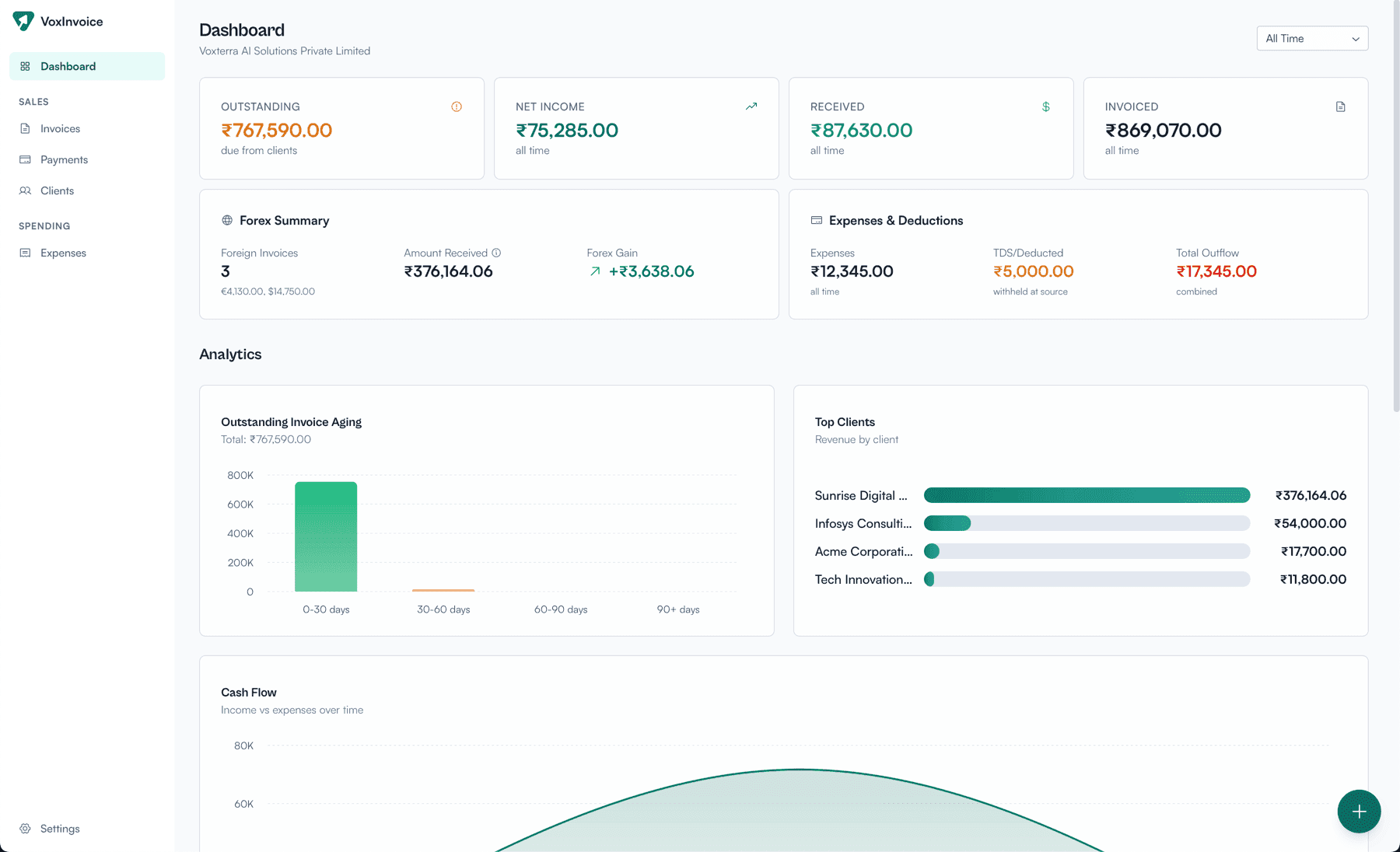
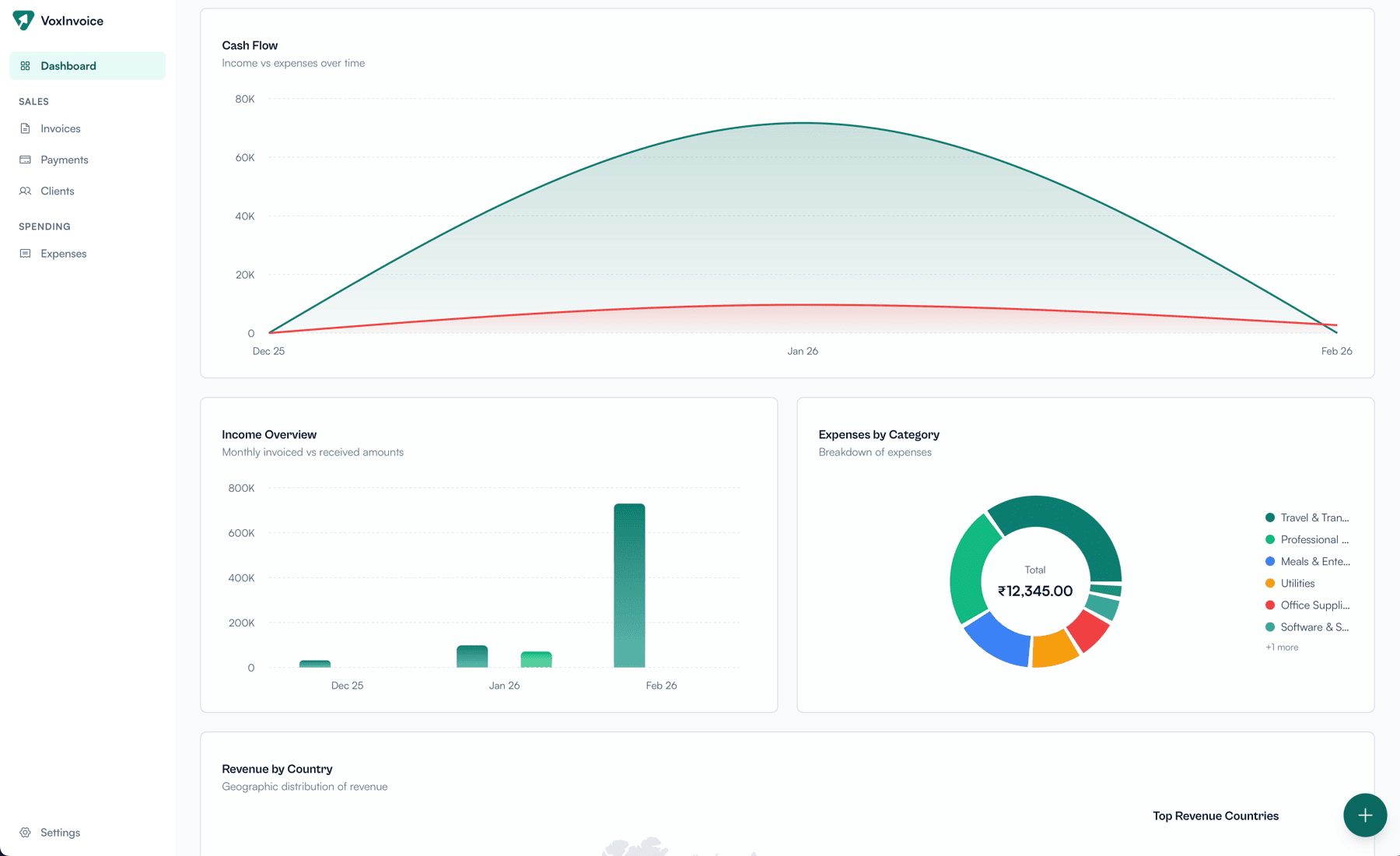
Your new home screen gives you a bird's-eye view of your business finances. See outstanding invoices, net income, total received, and total invoiced at a glance. The forex summary highlights foreign invoice performance and gain/loss. Below, interactive charts cover outstanding invoice aging, top clients by revenue, cash flow over time, income overview, expenses by category, and revenue by country.

How to get started

  1. 1Open VoxInvoice — the Dashboard is your home screen
  2. 2View KPI cards at the top for outstanding, net income, received, and invoiced totals
  3. 3Check the forex summary for foreign invoice performance and gain/loss
  4. 4Scroll down to explore interactive charts — aging, top clients, cash flow, and more
Dashboard showing KPIs, forex summary, expenses, deductions, and analytics charts
Cash flow chart, income overview, and expenses by category breakdown

Invoice Management: Create, Track & Get Paid

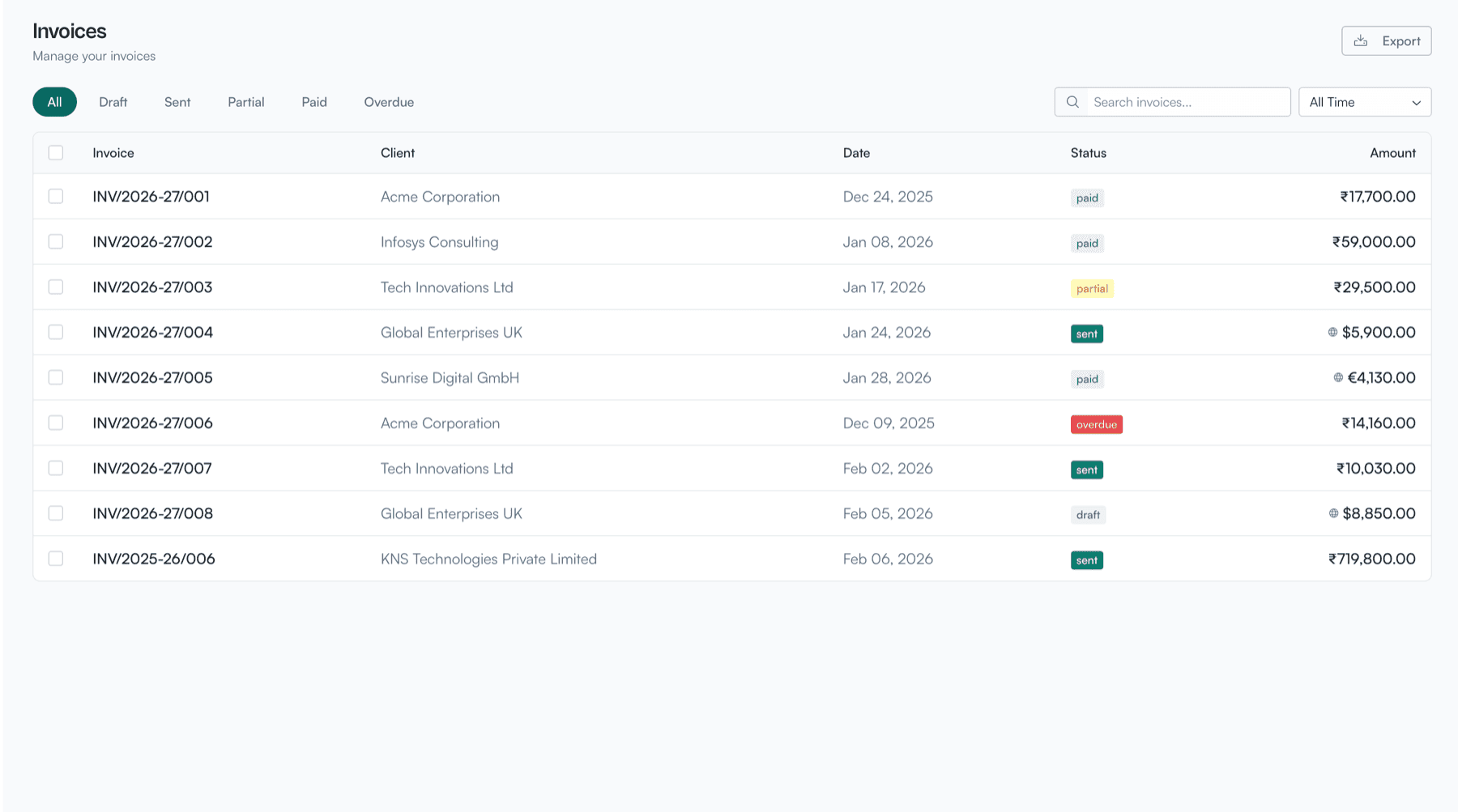
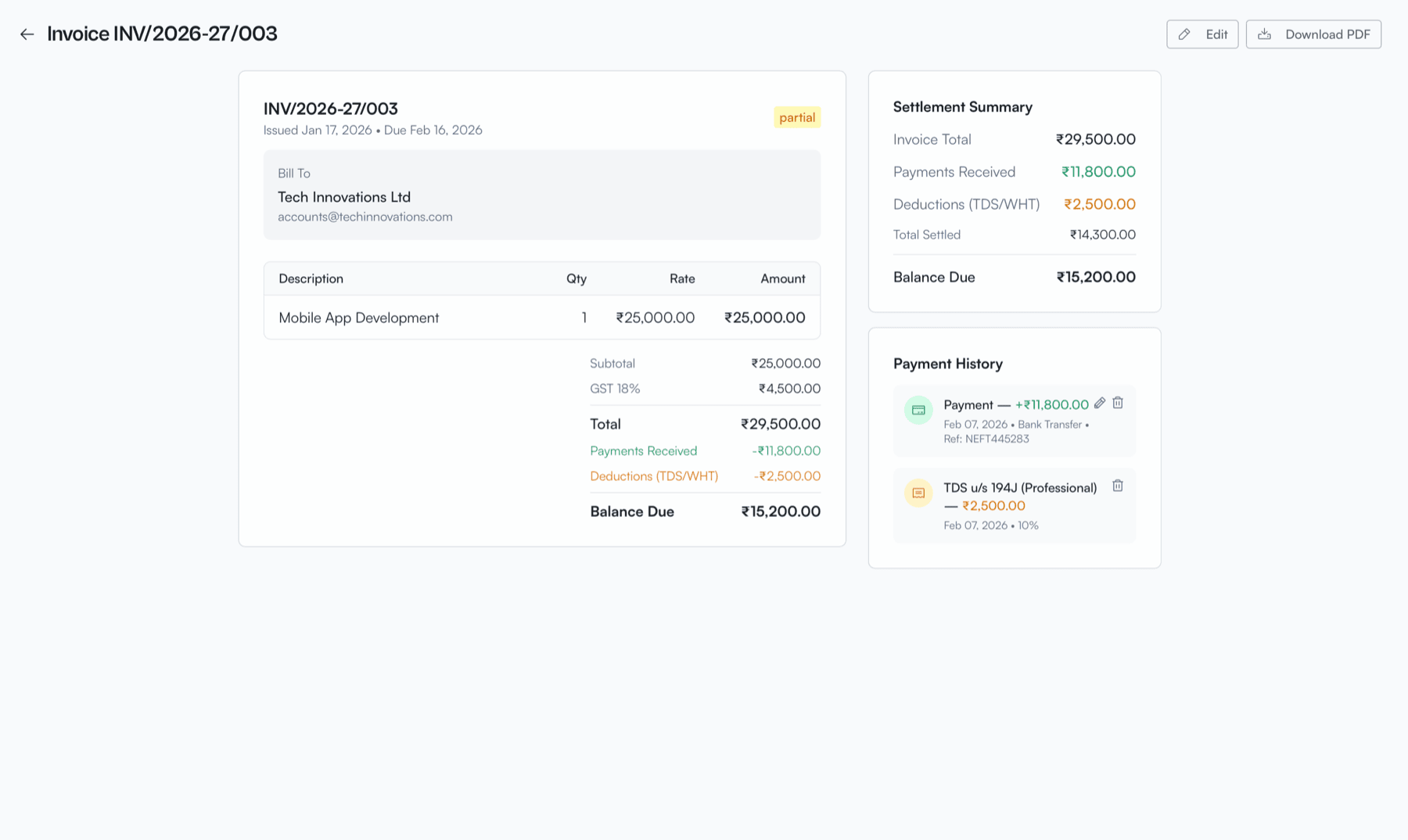
The invoices page now gives you full control over your billing workflow. Filter by status — draft, sent, partial, paid, or overdue — and search across all invoices instantly. Drill into any invoice to see line items, tax breakdowns, payment history, and the full settlement summary showing what's been received and what's still outstanding. Record payments, download PDFs, duplicate, or add notes — all from one screen.

How to get started

  1. 1Go to Invoices from the left sidebar
  2. 2Click New Invoice, fill in the client, line items, taxes, and due date
  3. 3Press Save to create the invoice as a draft
  4. 4Use the status filters at the top to find invoices by status
  5. 5Click any invoice to view its detail — line items, settlement summary, and payment history
  6. 6From the detail view, record a payment, download the PDF, or add notes
Invoices list with status filters, search, and export functionality
Invoice detail view with line items, settlement summary, and payment history

Expense Tracking & Categorization

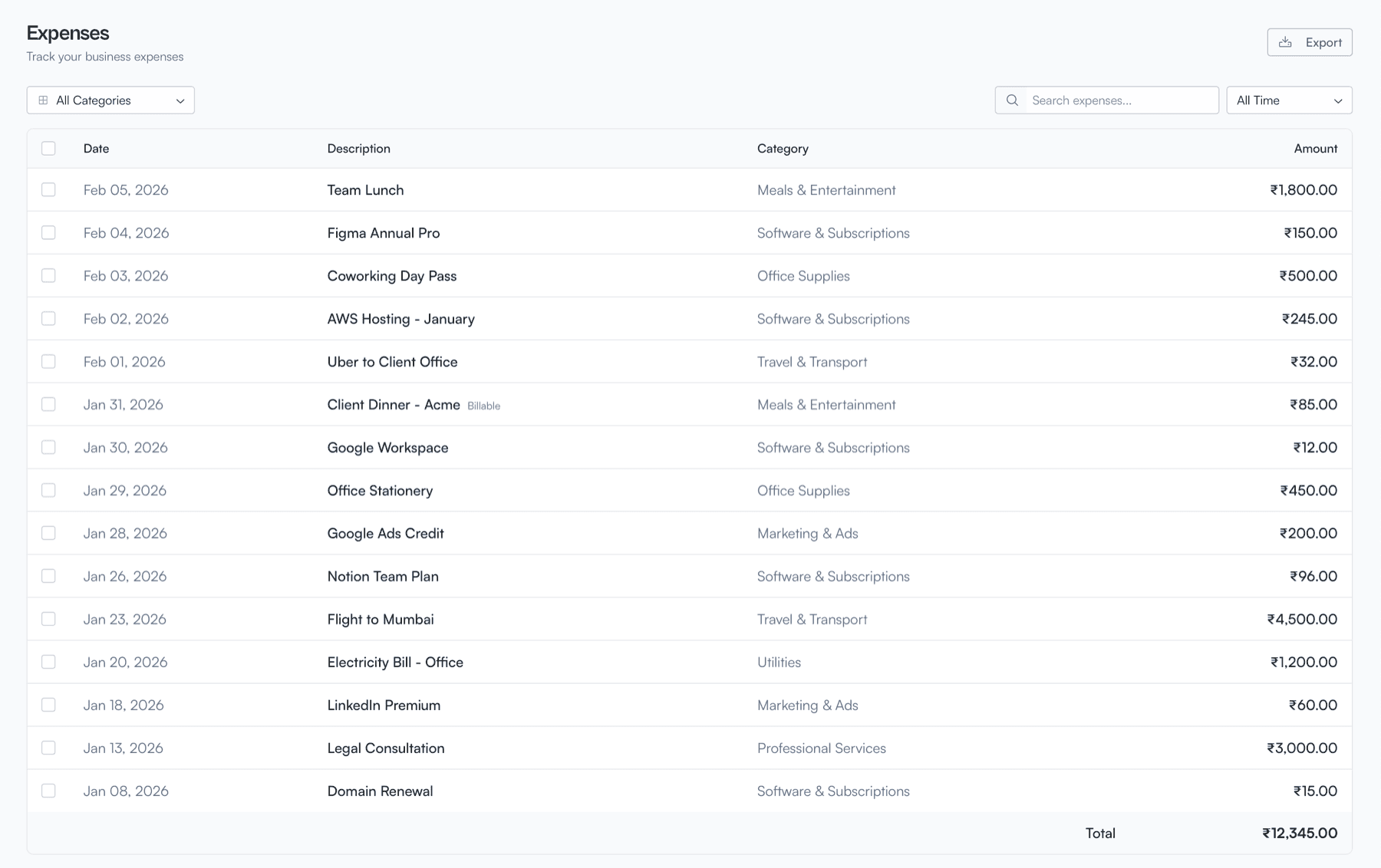
Keep tabs on every business expense in one place. Log expenses with categories like Travel, Software, Office Supplies, Professional Services, and more. Filter by category or date range, search by description, and export your expense data anytime. The running total keeps you aware of your overall spending at a glance.

How to get started

  1. 1Go to Expenses from the left sidebar
  2. 2Click Add Expense to log a new entry
  3. 3Fill in the amount, date, category, and description
  4. 4Optionally attach a receipt image
  5. 5Press Save — the expense appears in your list with a running total
  6. 6Use the category and date filters to narrow down your view
Expenses list with category filters, search, and running total

Business Profile & Multi-Business Support

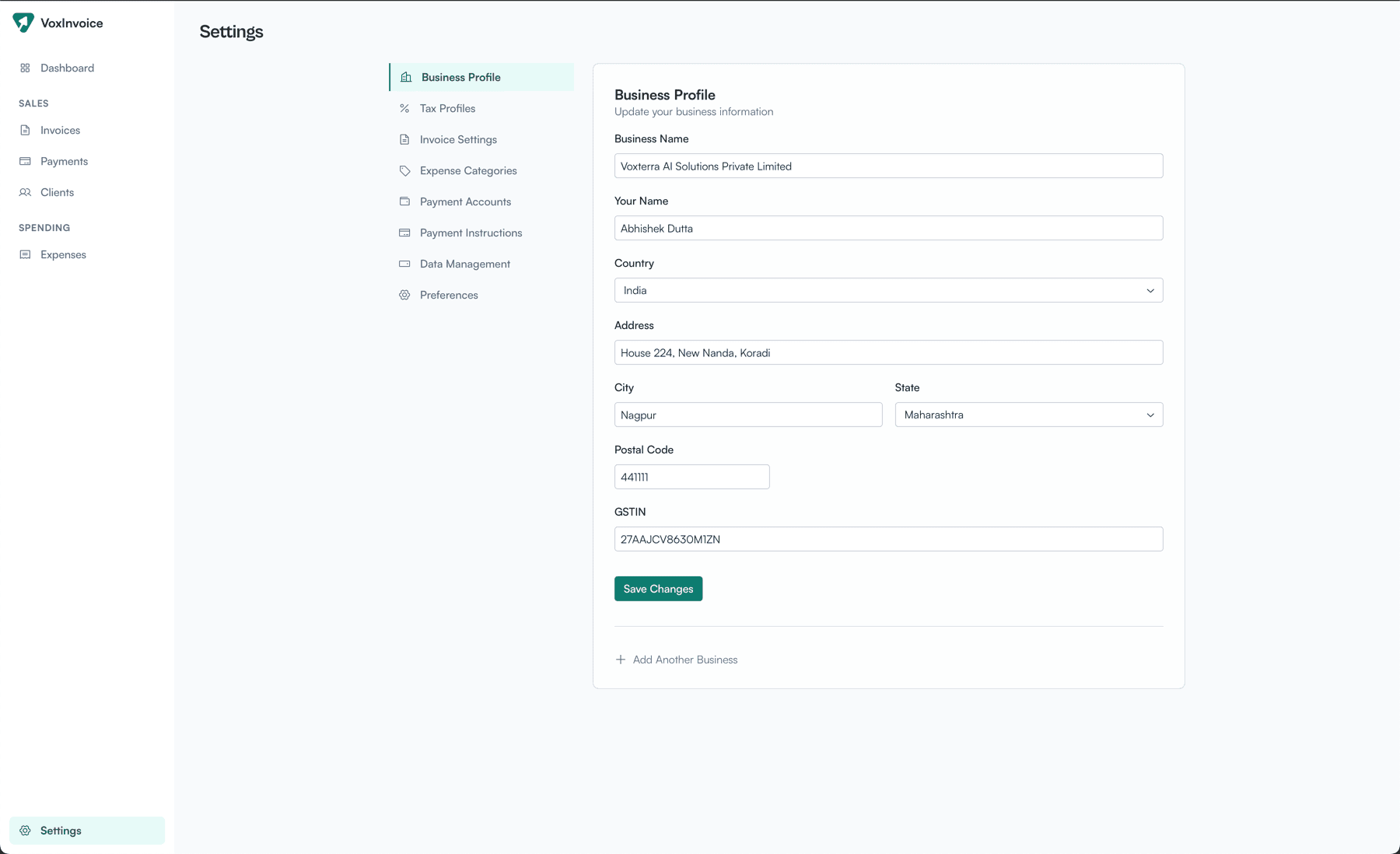
Set up your business profile with all the details that matter — name, address, country, state, GSTIN, and more. Running more than one business? Add as many as you need and switch between them seamlessly. Each business gets its own invoices, clients, expenses, and settings.

How to get started

  1. 1Go to Settings from the left sidebar
  2. 2Fill in your business name, address, country, state, and tax ID (e.g. GSTIN)
  3. 3Press Save to store your business profile
  4. 4To add another business, click Add Business at the top
  5. 5Switch between businesses anytime using the business switcher in the sidebar
Business profile settings with form fields and multi-business support

Local-First Data Management & Backups

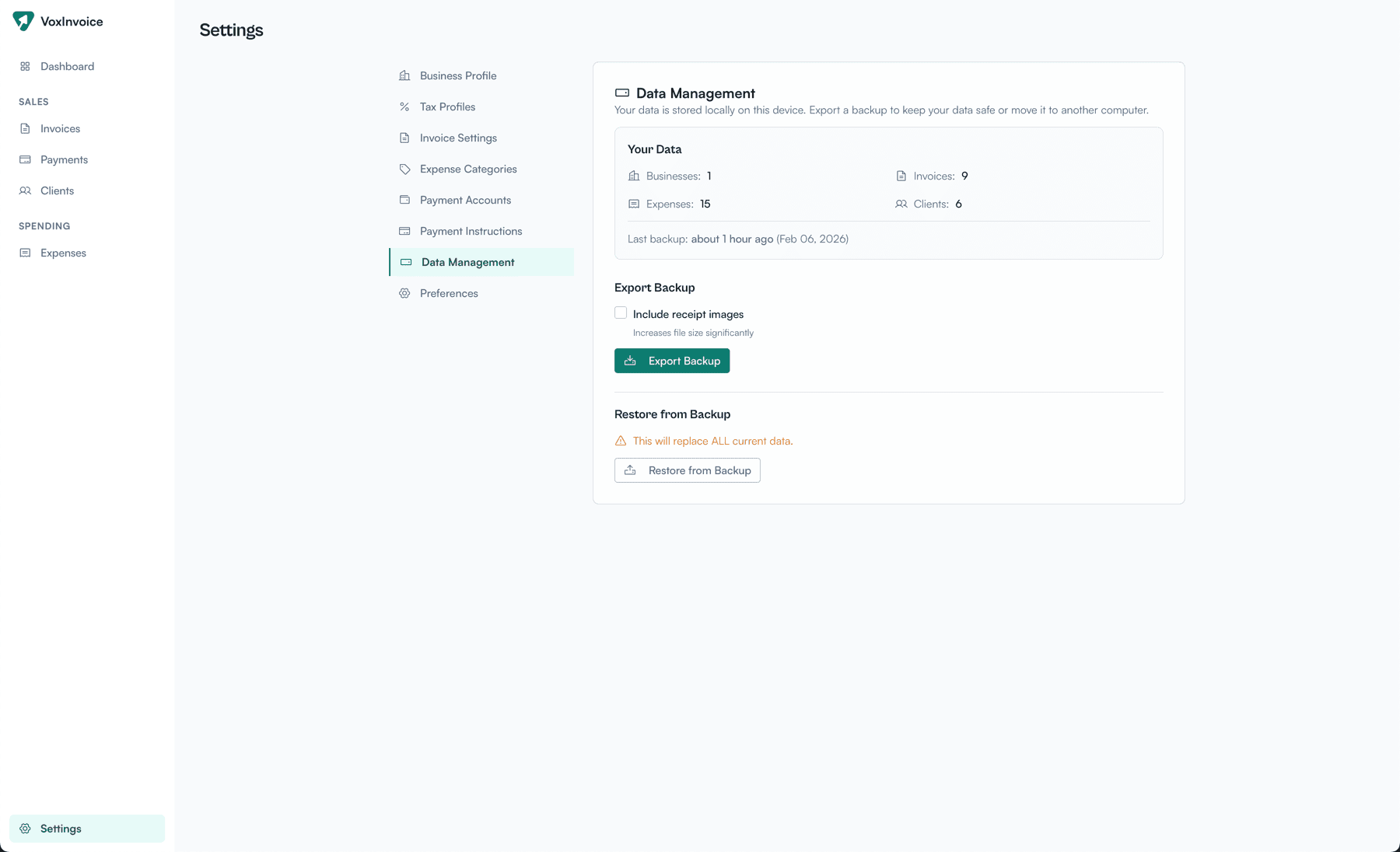
Your data lives on your device — always. The data management screen shows exactly what's stored: businesses, invoices, expenses, and clients. Export a full backup (optionally including receipt images) anytime, and restore from a backup to move your data to another machine. No cloud dependency, no subscriptions, no surprises.

How to get started

  1. 1Go to Settings from the left sidebar
  2. 2Open the Data Management section
  3. 3View a summary of everything stored — businesses, invoices, expenses, and clients
  4. 4Click Export Backup to save a full backup file (optionally include receipt images)
  5. 5To restore, click Restore from Backup and select a previously exported file
Data management settings with backup export and restore options